Devices Tutorial: Posting Our Images:
*
Windows smartphone or tablet:
1. Tap in the text box under the image you want to use.
2. Drag the circles to each end of the highlighted code.
2. Drag the circles to each end of the highlighted code.

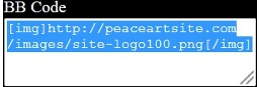
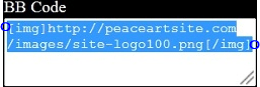


(The image and code box above, are used for demonstration in all Devices Tutorials).
BB Code
* Android smartphone or tablet:
1. Long-tap inside the text box under the image you want to use.
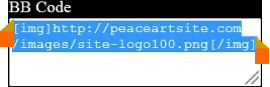
2. Drag the set of bounding handles to include the entire code.
3. Tap on the copy icon on the toolbar at the top of your screen.
4. Go to where you want to post the image and Tap.
5. Tap the paste icon on the toolbar.
2. Drag the set of bounding handles to include the entire code.
3. Tap on the copy icon on the toolbar at the top of your screen.
4. Go to where you want to post the image and Tap.
5. Tap the paste icon on the toolbar.


(Remember, your image will only be visible after you preview or submit it).
* Computer:
1. Tap in the text box under the image you want to use.
2. On your keyboard, hold down the control button and tap the letter "C."
3. Go to where you want to post the image and tap once.
4. On your keyboard, hold down the control button and tap the letter "V."
2. On your keyboard, hold down the control button and tap the letter "C."
3. Go to where you want to post the image and tap once.
4. On your keyboard, hold down the control button and tap the letter "V."
4. Go to where you want to post the image and Tap.
5. In the text suggestion bar above the keyboard, tap Paste.
5. In the text suggestion bar above the keyboard, tap Paste.
3. Tap Copy.

Tutorials for Copy and Paste on other Windows and Android Devices are next.
You'll see the code pasted.
(The image will be visible when you preview or submit).
(The image will be visible when you preview or submit).